How to Create a Q&A Page for Your Wedding Website
Learn how to add a FAQ section to your wedding website. Answer common guest questions about dress code, parking, plus ones, and more before they have to ask.
How to Create a Q&A Page for Your Wedding Website
Your Q&A page (Questions & Answers) is where you anticipate and answer common guest questions. Instead of fielding the same questions from dozens of guests, put the answers on your website where everyone can find them. This tutorial shows you how to create a helpful Q&A page that covers everything from dress code to parking.
What the Q&A Page Shows to Guests
When guests visit your Q&A page, they see:
- Questions displayed as headings
- Answers as text below each question
- Organized sections if you group related questions together
It’s like a FAQ (Frequently Asked Questions) page specifically for your wedding.
Accessing the Q&A Editor
To edit your Q&A page:
- Log in to your Harusi Hub account
- From your dashboard, look at the left sidebar
- Click on Website to expand the menu
- Click on Q + A
You’ll see the Q&A page editor where you can add and manage your questions and answers.
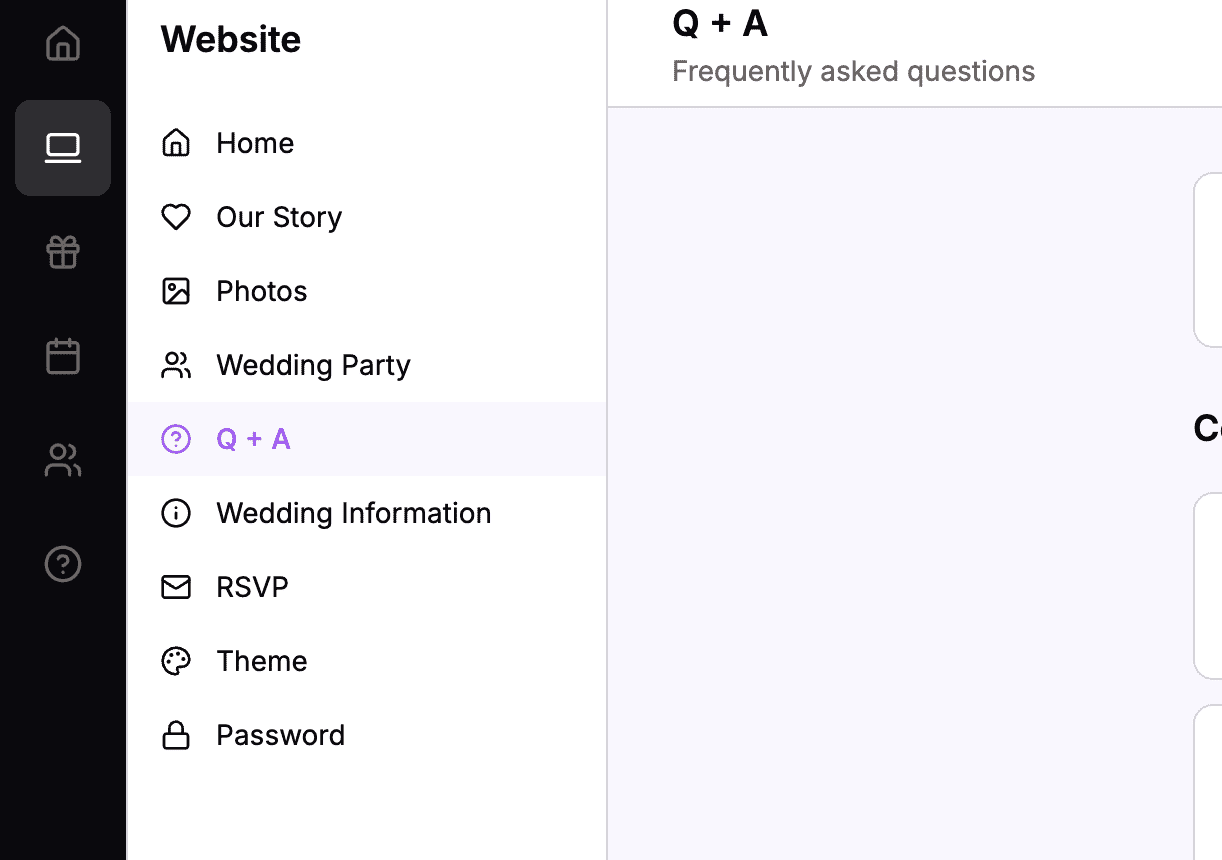 The sidebar navigation with Website > Q + A highlighted
Understanding Q&A Blocks
The Q&A page uses these content block types:
| Block Type | What It Contains | Best For |
|---|---|---|
| Q & A | A question and its answer | Each FAQ entry |
| Title & Body | A heading and text | Section headers like “About the Venue” |
| Spacer | Empty vertical space | Separating sections |
The Q&A block is specifically designed for question-and-answer pairs.
Adding a Q&A Block
Each question-answer pair gets its own Q&A block.
How to Add a Q&A Entry
- Click the Add Block button
- Select Q & A from the options
- The Q&A editor opens
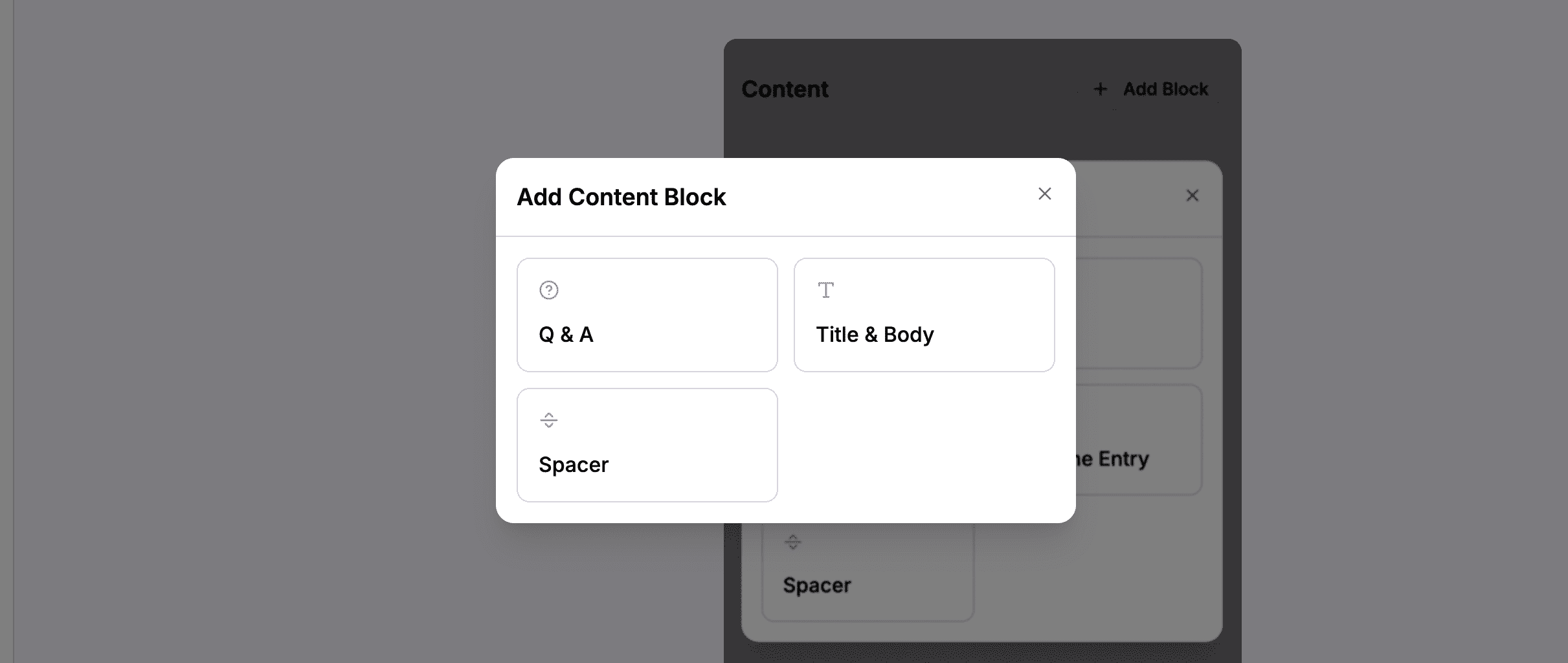 Choose Q & A to add a question and answer pair
The Q&A Editor
The Q&A editor has three fields:
- Title – This is the question
- Body – This is the answer
- Alignment – How the text is aligned (left, center, or right)
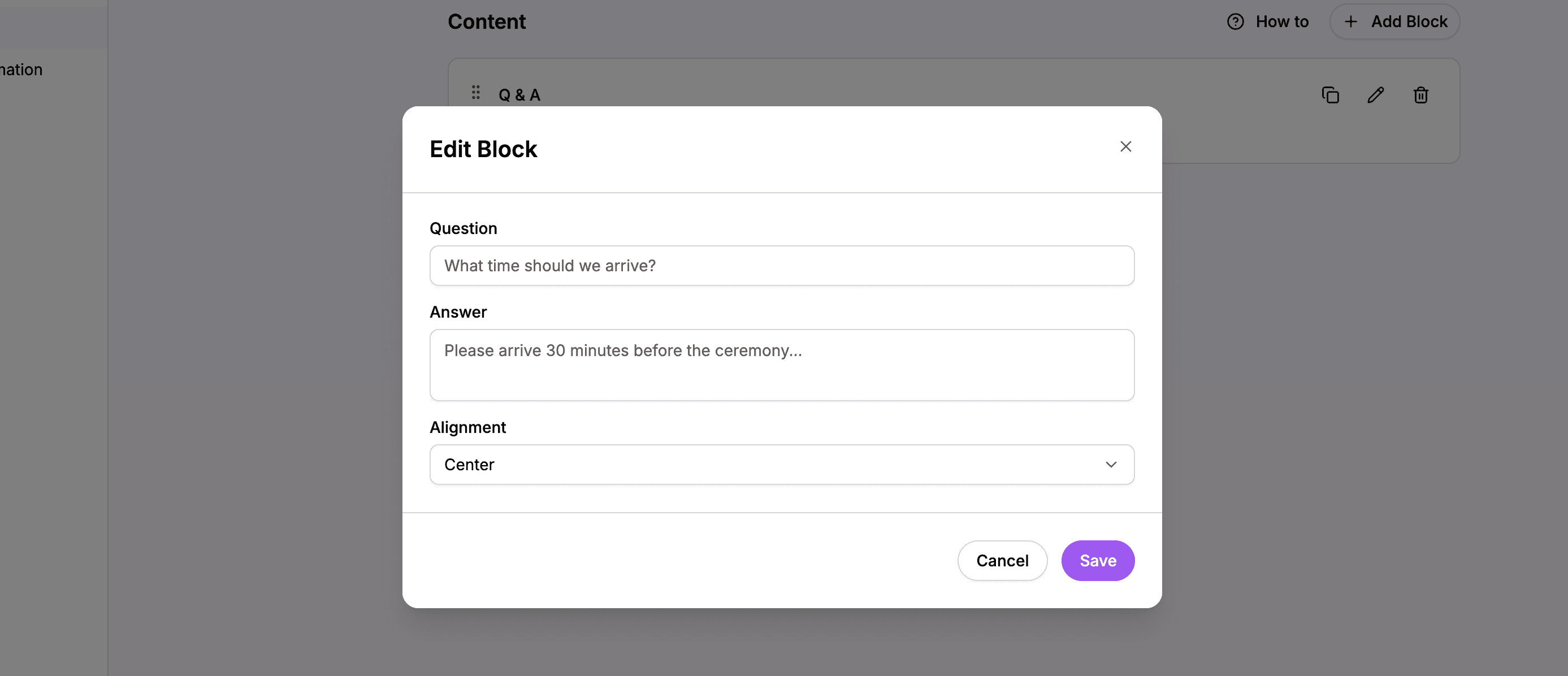 Enter your question in the Title field and the answer in the Body field
Writing the Question
In the Title field, enter the question exactly as guests might ask it:
- “What should I wear?”
- “Is there parking at the venue?”
- “Can I bring a plus one?”
Phrasing questions naturally helps guests find the answers they’re looking for.
Writing the Answer
In the Body field, write a clear, helpful answer:
- Be specific and direct
- Provide all necessary details
- Keep a friendly, warm tone
Setting Alignment
You can align your Q&A content:
- Find the Alignment dropdown
- Choose an option:
- Left – Text aligns to the left
- Center – Text is centered (default)
- Right – Text aligns to the right
Most Q&A pages look best with center or left alignment.
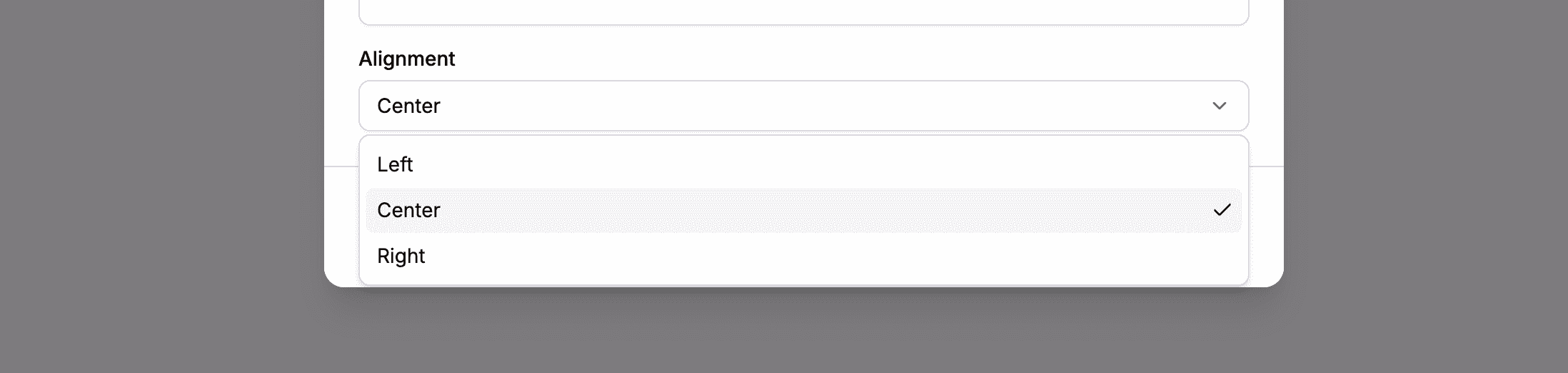 Choose how your question and answer text should be aligned
Saving Your Q&A Block
After entering your question and answer:
- Click Save
- The Q&A appears in your block list
Common Questions to Include
Here are questions your guests are likely wondering about. Consider adding these to your Q&A page:
Dress Code Questions
“What should I wear?”
We’re having a formal/semi-formal/casual celebration. For ladies, [dress suggestions]. For gentlemen, [suit/attire suggestions]. The ceremony will be outdoors, so consider [weather-appropriate footwear/accessories].
“What colors should I avoid wearing?”
Please avoid wearing white or ivory as we’d like the bride to stand out. Our wedding colors are [colors], but you don’t need to match them.
Venue & Logistics Questions
“Where is the wedding?”
The ceremony and reception will both be at [Venue Name] located at [Address]. You can find directions on our Home page.
“Is there parking at the venue?”
Yes, there is free/paid parking available on-site. [Add specific details about where to park, any restrictions, or valet options.]
“Will the wedding be indoors or outdoors?”
The ceremony will be outdoors and the reception will be indoors. In case of rain, we have a backup plan for [alternative arrangement].
Guest Questions
“Can I bring a plus one?”
Due to venue capacity, we can only accommodate guests who are specifically named on the invitation. Please refer to your invitation for who is included.
“Are children welcome?”
We love your little ones, but we’ve decided to make this an adults-only celebration. We hope you understand and can arrange childcare for the evening.
OR
Children are absolutely welcome! We’ll have [activities/childcare arrangements] to keep them entertained.
“Can I bring a gift?”
Your presence is the greatest gift! If you’d like to give something, please visit our Registry page. We kindly ask that gifts not be brought to the venue.
Food & Drink Questions
“Will there be food and drinks?”
Yes! We’ll be serving [type of meal – buffet, sit-down dinner, cocktails and appetizers]. There will be an open bar with [beer, wine, cocktails, non-alcoholic options].
“I have dietary restrictions. Will there be options for me?”
Yes, we’ll have vegetarian/vegan/halal/gluten-free options available. Please note your dietary requirements when you RSVP so we can accommodate you.
RSVP Questions
“How do I RSVP?”
Please RSVP through our website by clicking the RSVP button on the Home page. We need your response by [date].
“I RSVPed but my plans have changed. What do I do?”
Please update your RSVP through our website or contact us directly at [email/phone].
Day-Of Questions
“What time should I arrive?”
The ceremony starts at [time]. We recommend arriving 15-30 minutes early to find your seat. The venue opens at [time].
“Can I take photos during the ceremony?”
We ask that you keep phones and cameras put away during the ceremony – we have a photographer capturing everything. Feel free to take photos during the reception!
“Is there anything I should bring?”
Just yourself and your good energy! The venue provides [relevant info]. You might want to bring [sunscreen/jacket/comfortable shoes] because [reason].
Adding Multiple Q&A Entries
As you add more questions, they appear as a list of block cards in the editor.
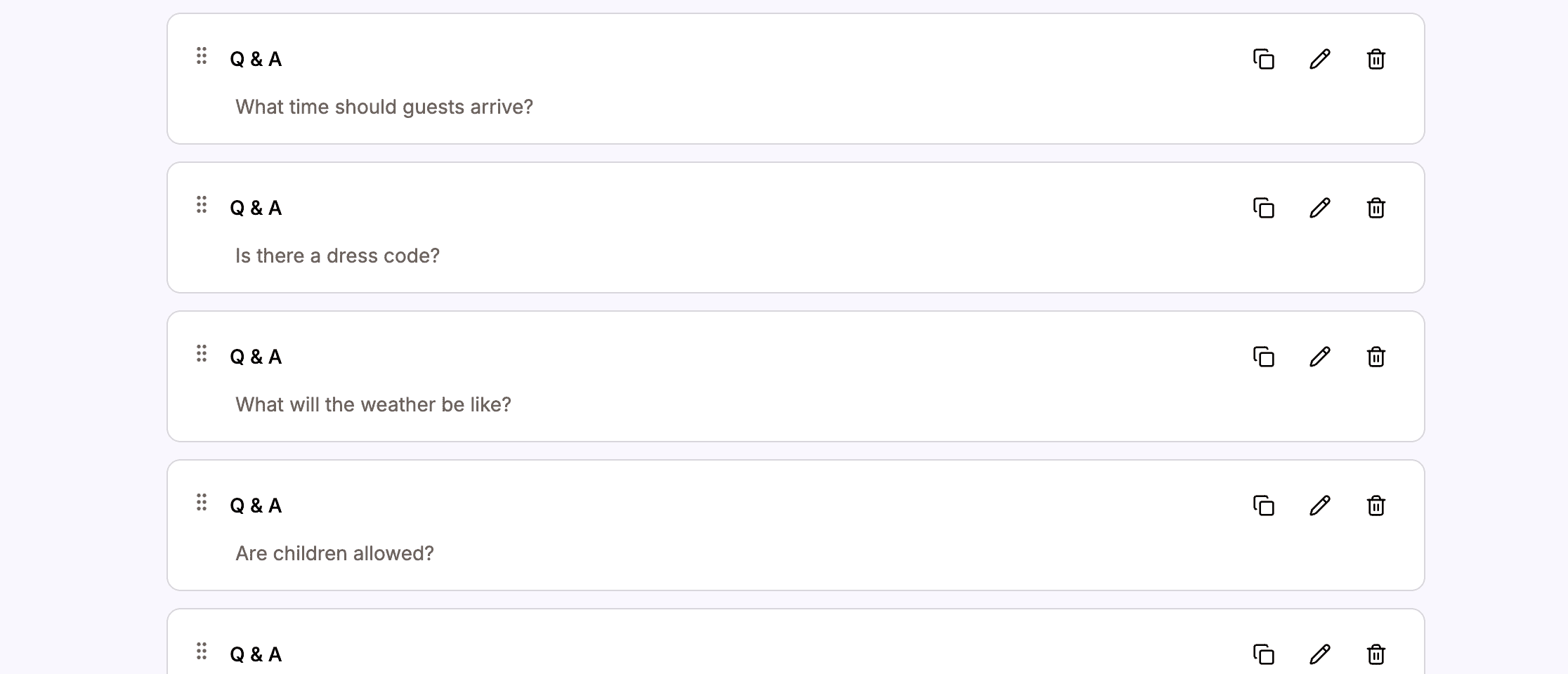 Each Q&A entry appears as a card showing the question preview
Reordering Questions
To change the order of your questions:
- Find the block you want to move
- Grab the drag handle on the card
- Drag it to a new position
- Release to drop it in place
Put the most important questions first, or group related questions together.
Organizing with Section Headers
If you have many questions, use Title & Body blocks to create sections.
How to Add a Section Header
- Click Add Block
- Select Title & Body
- Enter a title like “About the Venue” or “What to Wear”
- Optionally add introductory text in the body
- Click Save
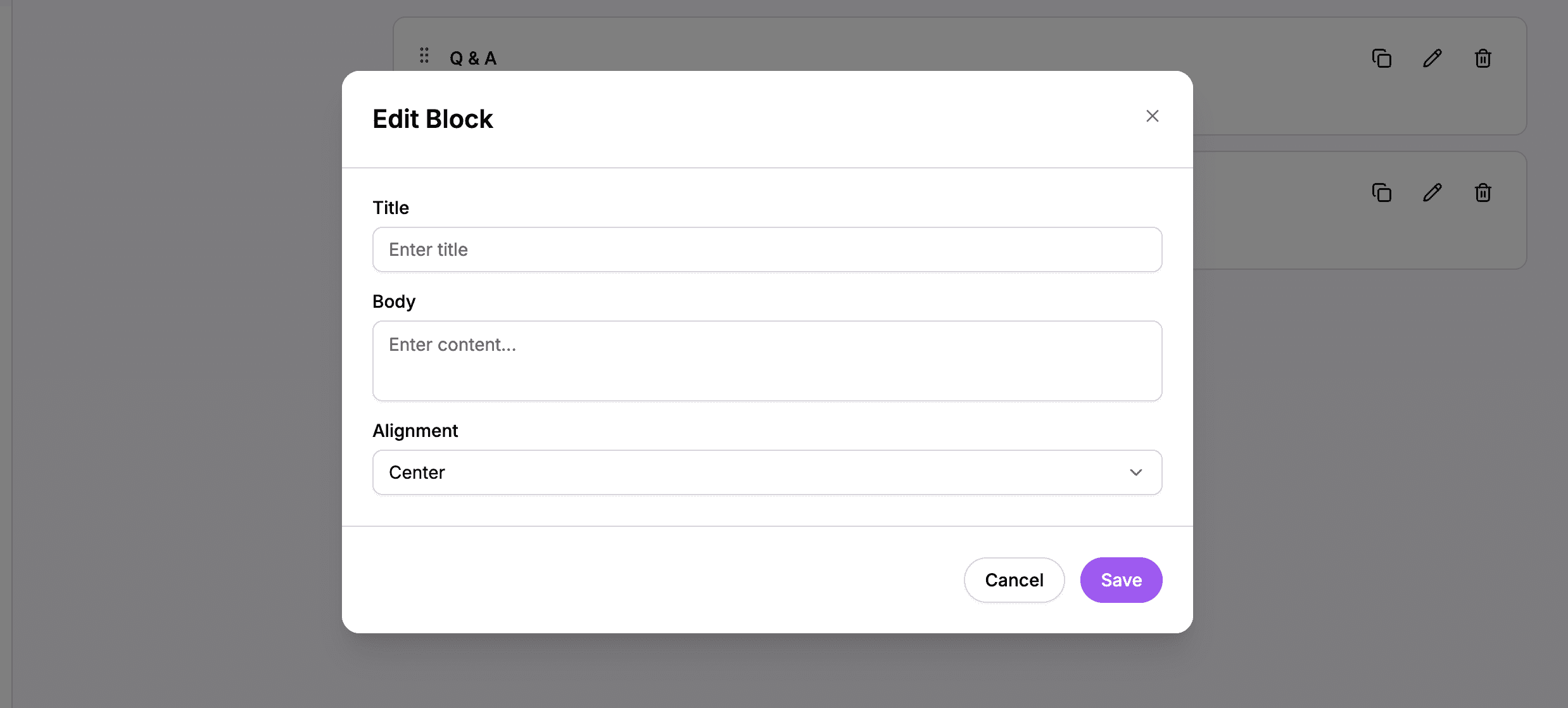 Use Title blocks to group related questions together
Example Section Structure
- Title & Body – “About the Day”
- Q&A – Arrival time
- Q&A – Venue location
- Q&A – Parking
- Spacer
- Title & Body – “What to Wear”
- Q&A – Dress code
- Q&A – Colors to avoid
- Spacer
- Title & Body – “Guest Questions”
- Q&A – Plus ones
- Q&A – Children policy
- Q&A – Gifts
Using Spacers
Spacer blocks add visual breathing room between sections.
How to Add a Spacer
- Click Add Block
- Select Spacer
- Choose a size (Small, Medium, or Large)
- Click Save
Use spacers between different sections to create clear visual separation.
Block Management
Editing a Q&A
- Find the Q&A block you want to edit
- Click the Edit button
- Update the question or answer
- Click Save
Deleting a Q&A
- Find the Q&A block
- Click the Delete button
- Confirm the deletion
Duplicating a Q&A
If you want to create a similar question:
- Find a Q&A to copy
- Click Duplicate
- Edit the duplicated entry with new content
How Q&A Appears on Your Website
On the live website, your Q&A entries display cleanly with:
- The question as a heading
- The answer as text below
- Consistent styling matching your theme
- Easy-to-scan format for guests
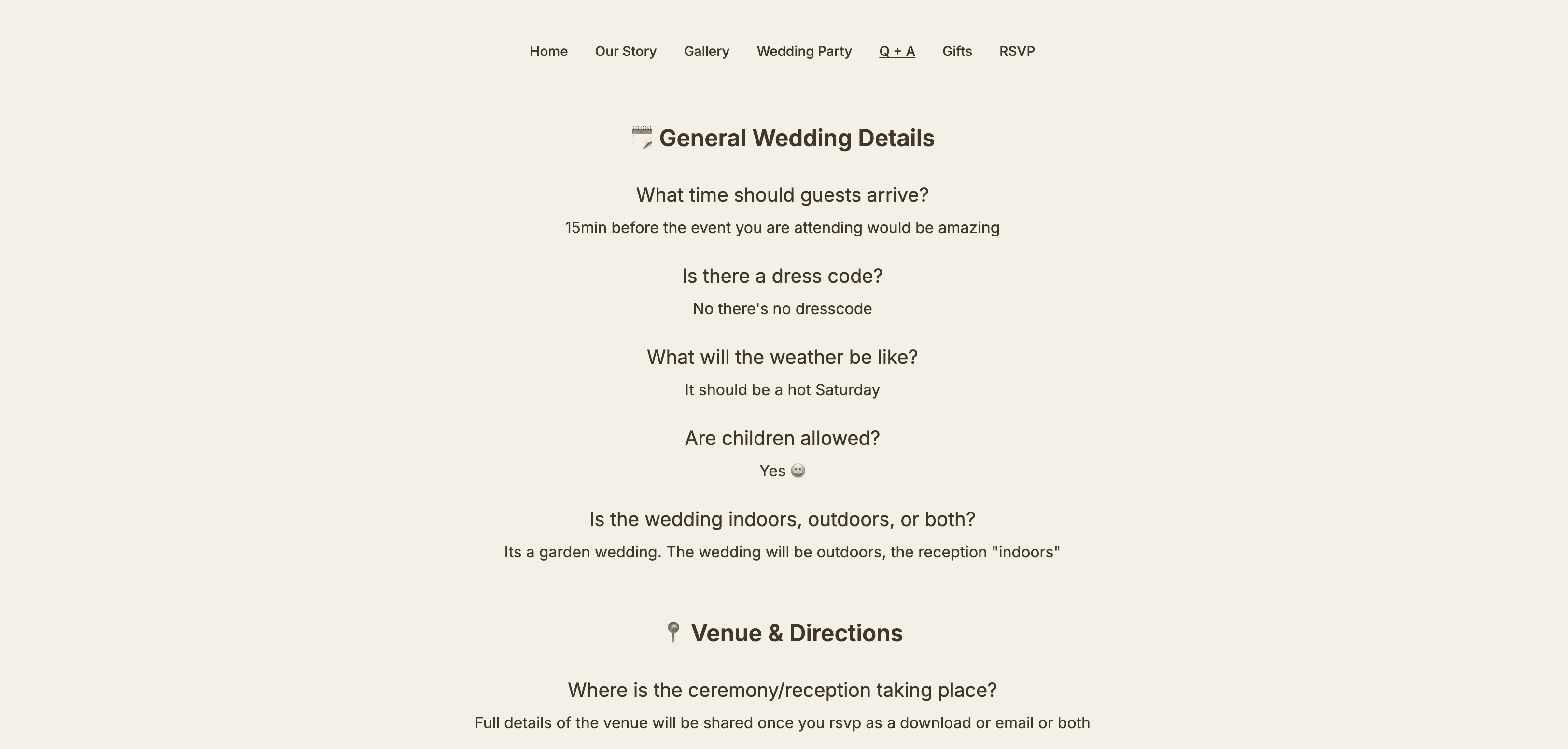 Your Q&A page helps guests find answers quickly
Tips for a Great Q&A Page
Anticipate Real Questions
Think about what guests actually need to know:
- What would you want to know if you were a guest?
- What questions have family members already asked?
- What unique aspects of your wedding need explanation?
Keep Answers Concise
- Get to the point quickly
- Use bullet points for lists
- Don’t over-explain
Be Warm and Friendly
Your Q&A can reflect your personality:
- It’s okay to be a little humorous
- Keep the tone welcoming
- Avoid sounding like rules or demands
Update as Plans Develop
- Add new Q&A entries as guests ask questions
- Update answers if details change
- Remove outdated information
Cover Sensitive Topics Gracefully
Some questions (like plus ones or children policies) can be sensitive:
- Be clear but kind
- Explain the “why” when appropriate
- Express appreciation for understanding
Summary
The Q&A page editor helps you answer guest questions proactively:
| Feature | What It Does |
|---|---|
| Q&A block | Create question-answer pairs |
| Title & Body | Add section headers |
| Spacer | Separate sections visually |
| Alignment | Control text alignment |
| Drag and drop | Reorder questions |
A well-crafted Q&A page reduces confusion and makes your guests feel prepared for your special day.
Ready to answer your guests' questions?
Create your wedding website and build a helpful Q&A page.
Create Your Q&A Page